Track your Mac's storage over time
macOS shows how full your disk is today. DiskFox keeps a dated history, so you can see what grew, when it happened, and the likely cause.
$6.99 one-time · 14-day free trial, no card needed · macOS 14 or later


Why a history matters
macOS's Storage settings show how your disk looks right now. They can't tell you that 30 GB appeared on Tuesday, after an update, or that a cache you cleared last month has quietly grown back. Without a history, every cleanup starts from scratch.
DiskFox keeps that history. Each scan records how big each part of your storage is, so the next scan can say exactly what changed since.
What Changed
The What Changed view leads with a plain headline, such as "Storage use grew by 30.2 GB this week", split by group. Below it is a dated list of the changes that matter:
- Changes in known places are named, for example a browser cache or Xcode's DerivedData. Changes in your own folders are named too: "videos_rendered (in Movies) grew…".
- Each change has a cause. "Cause" means DiskFox knows what the location is. "Likely cause" means it's inferred, for example storage that grew within 72 hours after a macOS update. DiskFox says when it can't confirm a cause from timing alone.
- Small changes stay quiet. Changes under 1 GB in a group aren't listed as events. Larger growth DiskFox can't place shows as "elsewhere on your Mac", so you know to look.
- Gaps aren't counted as growth. If DiskFox loses access to a location, for example after Full Disk Access is turned off, it says so. That location keeps its last size, so a gap in access never looks like growth or a cleanup.
Storage Trends
Storage Trends charts your storage over 7 days, 30 days, 90 days or all time. You can chart total used space, one group, or a folder you're keeping an eye on. Cleanups and other events are marked on the line. It shows what was measured at each scan, not a prediction, so it needs at least two scans.
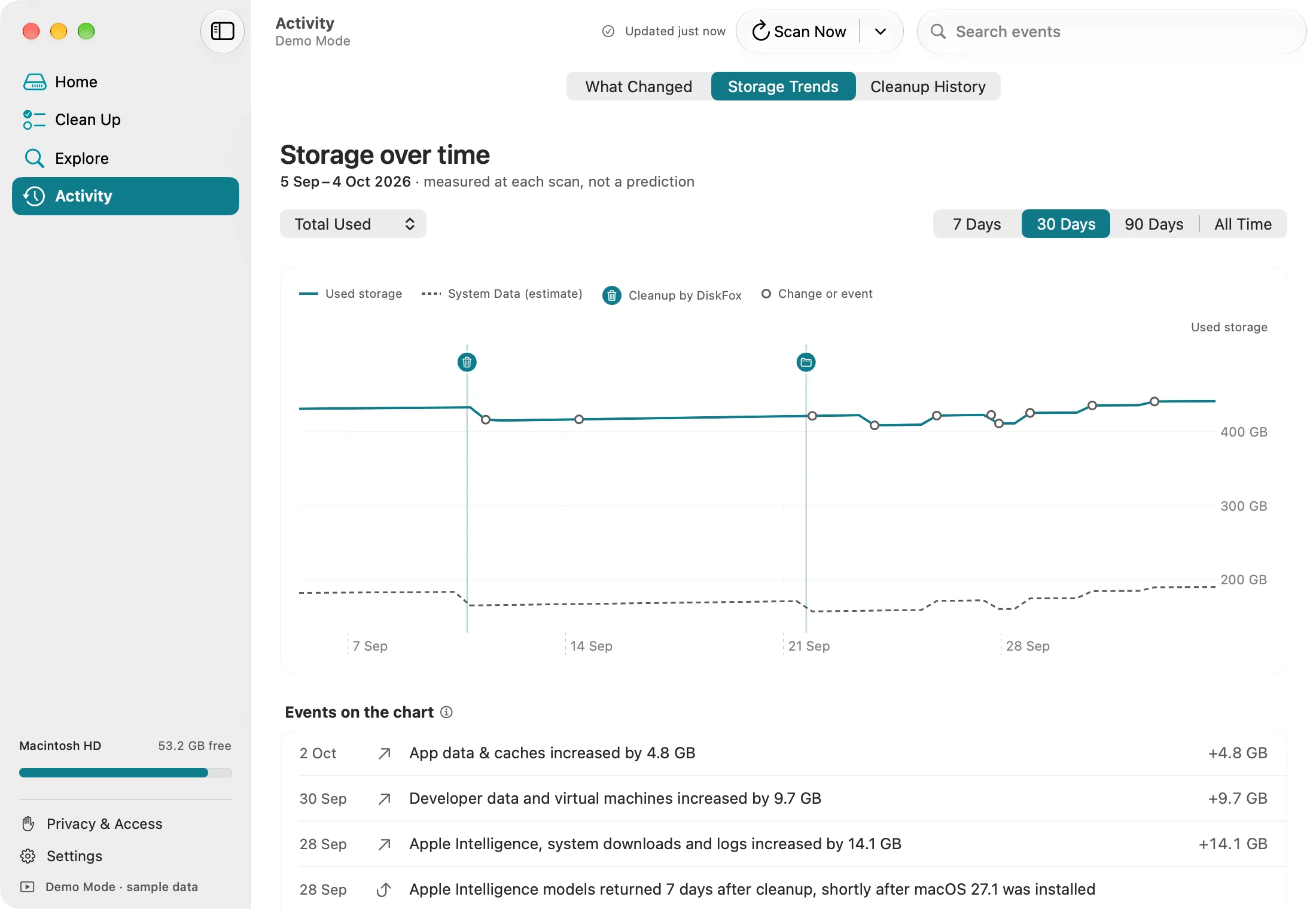
Storage Trends in Demo Mode, with sample data.
Automatic checks and history
- Automatic checks run while DiskFox is open: every 3, 6 or 12 hours, or once a day. Six hours is the default. A quick check also runs when DiskFox starts.
- Open at login. Turn on "Open DiskFox at login" and the menu-bar panel keeps it running quietly, so checks continue after you close the window.
- Light on your Mac. Checks run at background priority and wait while your Mac is in Low Power Mode or running hot. After the first full measurement, folders are re-measured only when macOS reports that something inside them changed.
- How long history is kept: every scan for 30 days, then one a day for a year, then one a week. History stays on your Mac, stores sizes rather than file names, and can be exported or erased.
Keep an eye on folders, and get alerts
- Keep an Eye on a Folder… pins any folder in your home folder, such as a project, a download folder or a video library. It gets its own line in What Changed when it changes by 100 MB or more, and you can chart it in Storage Trends.
- Storage Alerts notify you when something passes a size limit, when files sit untouched, or when space returns after a cleanup. Alerts only notify you; DiskFox never removes anything on its own.
Limits
- DiskFox tracks your Mac's startup disk, not external drives.
- It checks while it's running, so close it for a week and that week becomes one longer step in the history.
- A "likely cause" is an informed guess from timing and location, and is labelled as one.
For ways to track storage without any app, see how to track storage changes on a Mac.
Questions people ask
How often does DiskFox check my storage?
While it's open: every 3, 6 or 12 hours, or once a day (6 hours by default), plus a quick check when it starts. You can also scan any time.
Does it need to run all the time?
It checks only while it's running. Turn on Open DiskFox at login and it keeps running quietly in the menu bar.
How long is the history kept?
Every scan for 30 days, then one a day for a year, then one a week. It stays on your Mac and you can export or erase it.
Can it tell me why my storage grew?
It names the location that grew, such as a cache or a folder of yours. Where the cause is inferred, for example growth soon after a macOS update, it says "Likely cause".
Will tracking slow my Mac down?
Checks run at background priority and wait in Low Power Mode or when the Mac is hot. After the first scan, folders are re-measured only when macOS reports a change inside them.