Why does my Mac's storage keep filling up?
Short answer. The space that keeps disappearing usually goes to things built to come back: app and browser caches, chat apps' photos and videos, Mail downloads, cloud-sync copies, Time Machine local snapshots, swap and developer files. Deleting them often frees space for days, not months. The lasting fix is to find out which one grows on your Mac, by comparing folder sizes over time, and then change the setting that keeps refilling it.
What grows back on its own
| What grows | Why it comes back | What slows it down |
|---|---|---|
| App and browser caches | Apps rebuild caches as you use them. That's their job. | Not much. Clear one only if it's huge or broken. |
| Messages and chat apps | Photos, videos and voice notes download and stay. | Shorter message history; turn off automatic media downloads. |
| Mail keeps copies of attachments you open. | Mail's Remove unedited downloads setting. | |
| iCloud Drive and Photos | With room to spare, macOS keeps full copies on your Mac. | Optimize Mac Storage; remove downloads you don't need. |
| Dropbox, Google Drive, OneDrive | Folders marked to stay offline download everything in them. | Make big folders online-only. |
| Time Machine local snapshots | A new one about every hour while Time Machine is on. | Let backups finish; macOS removes old ones. |
| Swap | Grows when apps need more memory than your Mac has. | Restart now and then. |
| macOS updates | Downloaded in the background before you install them. | Install them; macOS clears staged updates when space is low. |
| Downloads folder | Installers, disk images and videos pile up. | Bin installers once you've used them. |
| Developer files | Every build, Xcode update and package install adds more. | Regular housekeeping (below). |
| Logs | An app with a fault can write gigabytes. | Update or remove the app. |
Some of these appear in Storage settings as System Data, which has no breakdown there. If that's the part growing, why your Mac's System Data is so large shows how to check each piece.
Storage still full after deleting files?
If you've just deleted a lot and free space hasn't moved, it's usually one of these:
- It's in the Trash. Deleting in Finder moves files to the Trash, which still takes space until you empty it. Photos also keeps deleted pictures and videos in Recently Deleted for about a month.
- A Time Machine snapshot still holds it. With Time Machine on, your Mac keeps hourly local snapshots for up to 24 hours (Apple). A file you delete stays inside them until they go.
- The space is purgeable, not free yet. macOS frees purgeable space when something needs it, but Finder and Storage settings may not count it as available (Eclectic Light). In Disk Utility, select your startup disk and look for Purgeable under the bar.
- iCloud is holding local copies. With Optimize Mac Storage on, iCloud Drive keeps full copies on your Mac while there's room, and only trims them when space is needed (Apple). Photos works in a similar way.
- Storage settings hasn't caught up. It can take a while to recalculate. Close System Settings, wait a few minutes and open it again, or check Disk Utility.
Why cleaning up doesn't stick
Three things undo most cleanups:
- Caches refill by design. Clear Chrome's or Spotify's cache and it starts rebuilding the next time you open the app. Within days much of it is back, and the app may feel slower while it refills.
- Free space gets used. Apple says Time Machine keeps local snapshots only on disks with plenty of free space, and iCloud keeps more files locally when there's room. Free up 50 GB and some of it can quietly fill again with things macOS would hand back if it needed to.
- The setting behind it is still on. If Messages keeps everything forever, or a chat app downloads every video it's sent, deleting old files only resets the clock.
So the useful question isn't "what can I delete?" but "what grew, and when?"
Find out what grew, and when
Storage settings shows only what's there now. To see what changed, save a record today and compare it with one from next week. This takes a few commands in Terminal (in Applications > Utilities).
Save today's folder sizes in a dated file:
mkdir -p ~/storage-log
du -xk -d 3 ~ 2>/dev/null > ~/storage-log/home-$(date +%Y-%m-%d).txt
This records the size of every folder up to three levels inside your home folder. It only reads, and can take a few minutes. Terminal can't see some protected folders unless you allow it in System Settings > Privacy & Security > Full Disk Access; without that, those folders are skipped.
Note how much space is used overall:
echo "$(date +%Y-%m-%d) $(df -h /System/Volumes/Data | tail -1)" >> ~/storage-log/used.txtThis adds a dated line to
used.txtshowing your disk's size, then the space used and the space available. It changes nothing else.A week later, run both again. Then compare the two files, changing the dates to match yours:
cd ~/storage-log
awk -F'\t' 'NR==FNR {old[$2]=$1; next} {d=($1-old[$2])*1024/1e9; if (d>=0.5 || d<=-0.5) printf "%.1f GB\t%s\n", d, $2}' home-2026-10-08.txt home-2026-10-15.txt | sort -rn | head -20
This lists folders that grew or shrank by half a gigabyte or more, biggest growth first. It only reads. Each folder's size includes what's inside it, so
~/Libraryand~/Library/Cachescan both appear for the same growth; the deepest folder in the list is the one to look at.
This covers your home folder only. If used.txt shows a big rise but nothing in the list explains it, check the usual suspects outside it:
tmutil listlocalsnapshots /
sysctl vm.swapusage
The first lists Time Machine and macOS update snapshots on your startup disk; the second shows how much swap is in use. Both only read. For a fuller routine, see how to track storage changes on a Mac.
How to stop the most common regrowth
Once you know what grows, change the setting behind it:
Empty the Trash automatically. In Finder, choose Finder > Settings > Advanced and turn on Remove items from the Trash after 30 days.
Keep less Messages history. In Messages, choose Messages > Settings > General and set Keep messages to 1 Year or 30 Days. Be careful: this permanently deletes older messages and their attachments, and with Messages in iCloud the deletions can reach your other devices too.
Stop Mail keeping attachment copies. In Mail, choose Mail > Settings > General and set Remove unedited downloads to After Message is Deleted or When Mail Quits.
Let iCloud trim itself. Turn on Optimize Mac Storage in System Settings > your name > iCloud > Drive, and in Photos > Settings > iCloud. For a big file you only need now and then, Control-click it in Finder and choose Remove Download; it stays in iCloud.
Turn off automatic media downloads in chat apps such as WhatsApp, Telegram or Slack, in each app's own settings, and use their storage tools, where they have them, to clear old media.
Do developer housekeeping after Xcode or tool updates. Both of these delete straight away rather than using the Trash, but only remove things you can get back or no longer use:
xcrun simctl delete unavailableRemoves simulator devices whose iOS version is no longer installed, so they couldn't run anyway.
brew cleanupIf you use Homebrew, removes old versions of what you've installed and its old downloads. Docker users can also clear build cache and unused images; the System Data guide linked earlier covers that and its risks.
Restart now and then. It clears swap and some temporary files.
Let Time Machine finish backups. Connect your backup drive regularly so old snapshots can be removed.
Where DiskFox helps
DiskFox was built for the "what grew, and when?" question. While it's open, it measures your storage on a schedule (every six hours by default, plus a quick check when it opens) and keeps the history on your Mac.
- What Changed compares those scans and gives a headline such as "Storage use grew by 30.2 GB this week", split into groups like developer data or backups, with dated events. Each is labelled Cause when DiskFox knows the location, or Likely cause when it's inferred, for example from a macOS update in the 72 hours before.
- Storage Trends charts used space, a single group or a folder you pin, over 7, 30 or 90 days or all time, with a dashed line for its System Data estimate.
- After a cleanup, Notify Me If It Comes Back and the Returns after cleanup alert tell you when something regrows. Alerts only notify you; DiskFox never removes anything on its own.
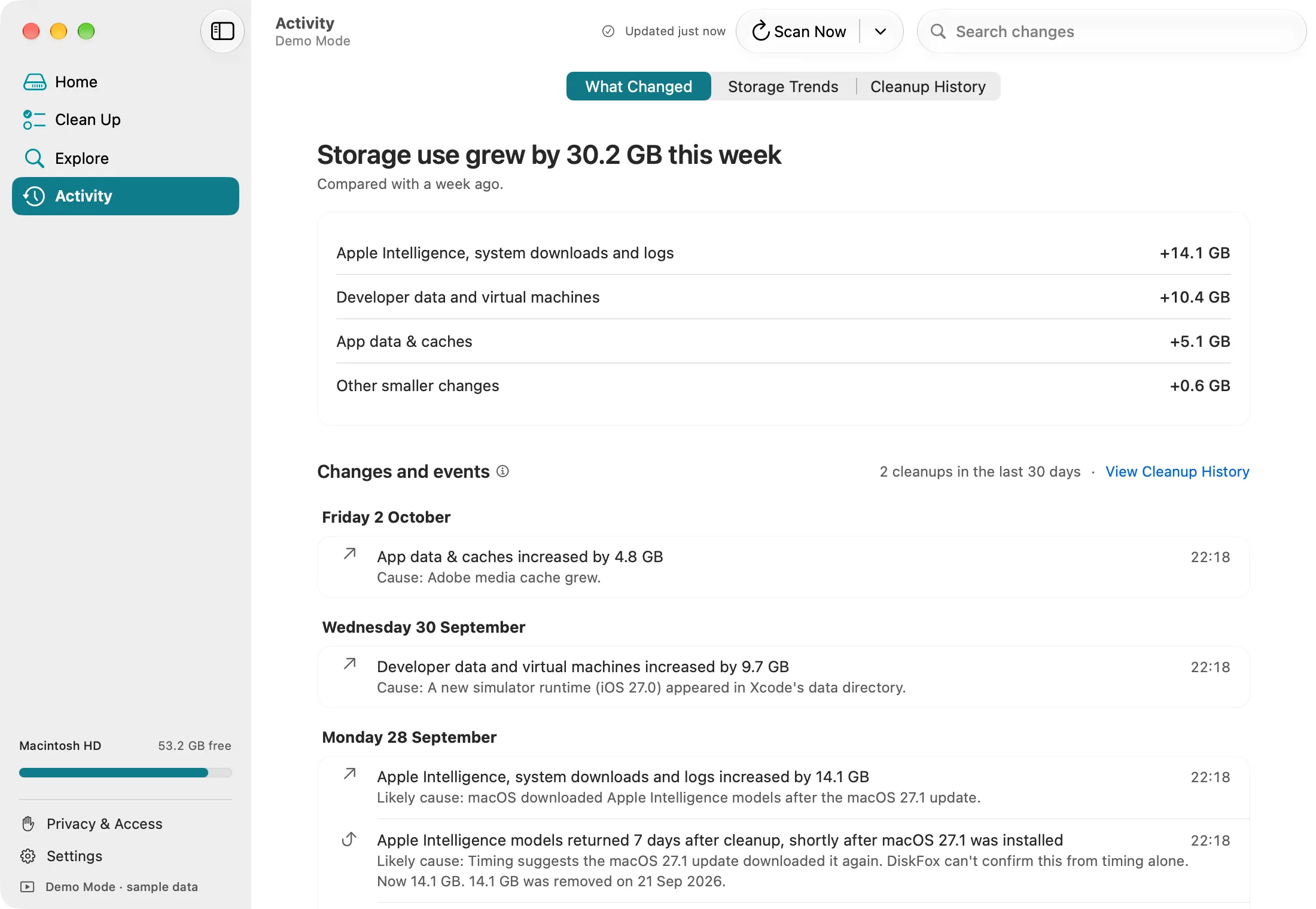
DiskFox's What Changed view in Demo Mode, with sample data.
It has limits. History starts when you install it, so it can't tell you what grew last month, and it only measures while it's open (it can open at login). It covers the startup disk only, group changes under 1 GB don't show as events, and growth it can't place is shown as "elsewhere on your Mac" rather than guessed. It counts Time Machine snapshots but can't size them, because macOS doesn't report that. More on the Mac storage tracker page.
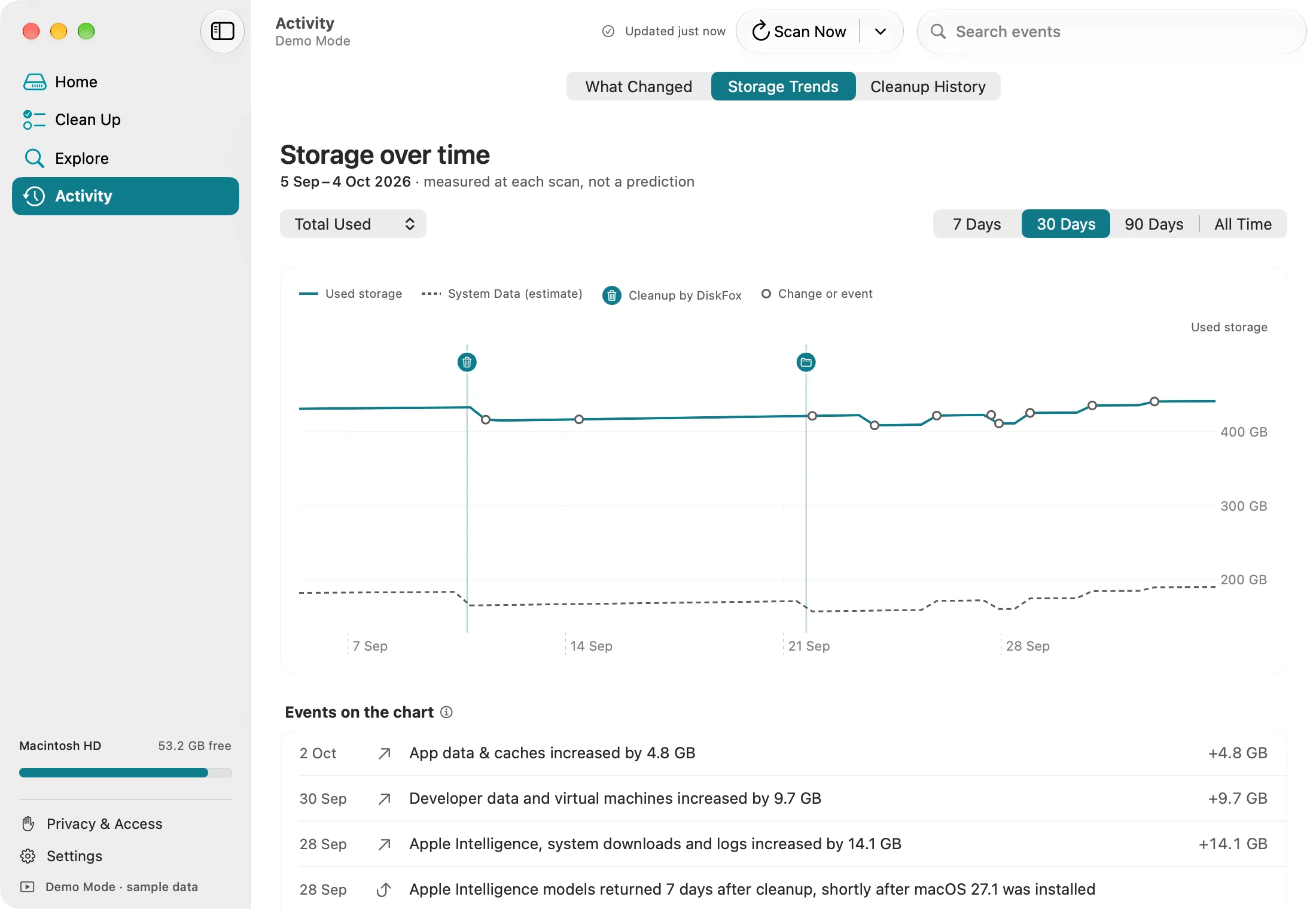
DiskFox's Storage Trends chart in Demo Mode, with sample data.
What to do next
- Today: empty the Trash if you're sure, check Disk Utility for purgeable space, and save your first
durecord. - In a week: compare the records and find the folder that grew most.
- Then: change the setting that refills it, rather than deleting the same files again. If the growth is in your own files, find the large files on your Mac and decide what to keep.