How to clear the cache on a Mac, and is it safe?
Short answer. Quit the app, then use its own setting: in Chrome, Delete browsing data > Cached images and files; in Firefox, Clear Data > Temporary cached files and pages; in Safari, Develop > Empty Caches; for other apps, move the app's folder in
~/Library/Cachesto the Trash. It's safe because apps rebuild their caches, but the space comes back as you use them, and it won't make your Mac faster. Leave system caches alone: macOS clears them itself when space runs low.
What a cache is
A cache is a stash of files an app keeps so it doesn't have to download or work out the same thing twice. Your browser keeps images and scripts from sites you visit. Spotify keeps bits of songs so they play without stuttering. Photo and video apps keep thumbnails and previews.
Nothing in a cache is the only copy of anything. That's why clearing it is usually safe: the app rebuilds what it needs. The cost is that the app may be slower the first time you use it again, and it has to download some things again.
Caches live in a few places:
- Your own caches, in the Library folder inside your home folder:
~/Library/Caches. The~means your home folder. Each app gets its own folder in here. - Shared caches, in
/Library/Cachesat the top level of your disk. These are used by macOS and by apps for every user on the Mac. - macOS's own caches, in
/System/Library/Cachesand hidden folders under/private/var/folders. macOS protects and manages these.
Some apps, such as Slack and Discord, keep their caches in ~/Library/Application Support instead. Developer tools often use hidden folders in your home folder, such as .npm.
Which caches are safe to clear
| Cache | Where it is | Safe to clear? | Best way |
|---|---|---|---|
| Browser caches | Inside each browser's own folders | Yes | The browser's own setting (below) |
| Apps you installed | ~/Library/Caches/<app name> |
Usually, with the app quit | The app's own button, or the Trash |
| Apple's own caches | ~/Library/Caches/com.apple.… |
Leave alone | macOS manages them |
| Shared caches | /Library/Caches |
Leave alone | macOS and apps manage them |
| macOS system caches | /System/Library/Caches, /private/var/folders |
Leave alone | macOS manages them |
| Developer caches | Xcode's DerivedData, ~/.npm and similar |
Yes, but the next build is slower | The tool's own command |
Developer caches can be the biggest of all. Xcode, npm, Homebrew and Docker each have their own clean-up commands, covered in how to free up developer storage on a Mac.
Some folders hold real data, not caches, even when they look like clutter. Application Support, Containers, Mail, Messages and iPhone backups are examples. Don't clear these as if they were caches. How to free up space on your Mac covers the safe way to deal with each.
Before you start
Check whether it's worth it. Open Terminal (in Applications > Utilities) and run:
du -sh ~/Library/Caches
du -sh ~/Library/Caches/* 2>/dev/null | sort -h | tail -10
The first line gives the total. The second lists the 10 biggest cache folders, biggest last. Both only measure; they don't change anything. If the total is a few hundred megabytes, clearing it won't make a real difference.
Quit the app. Press Command-Q in the app, or Control-click its icon in the Dock and choose Quit. Some apps keep running from the menu bar at the top right of the screen; quit those from their menu-bar icon. Clearing a cache while the app is open can confuse it, and it may write the files straight back.
Use the Trash, not permanent delete. Move folders to the Trash so you can put them back if an app misbehaves. Empty the Trash once you've opened the app and checked it works. Until then, the space isn't free.
Clear your browser's cache
Use each browser's own setting. It clears the right files and won't touch your bookmarks or saved passwords. Leave cookies unticked if you want to stay signed in to websites.
Safari
Safari's cache-only option is in the Develop menu, which is hidden at first.
- Choose Safari > Settings, then click Advanced.
- Tick Show features for web developers.
- Choose Develop > Empty Caches.
Apple describes Empty Caches as deleting all caches stored by the browser (Apple Developer). Apple's general route is Safari > Settings > Privacy > Manage Website Data, then Remove or Remove All. That removes cookies and other website data too. Apple warns it may sign you out of websites or change how they behave (Apple).
Chrome
- Click More (the three dots, top right), then Delete browsing data.
- Choose a time range, such as All time.
- Tick Cached images and files and untick the rest, including Cookies and other site data.
- Click Delete data.
Google says this removes text and images from pages you've visited (Google).
Firefox
- Choose Firefox > Settings, then click Privacy & Security.
- In Cookies and Site Data, click Clear Data. Newer versions call these Browsing data and Clear browsing data.
- Tick only Temporary cached files and pages. If there's a time range, choose Everything.
- Click Clear (Mozilla).
Clear other apps' caches
Use the app's own button first
Some apps have a clear-cache option of their own. It's the safest way, because the app knows exactly what it can remove. Two examples:
- Spotify: click your profile picture, choose Settings, scroll to Storage and click Clear cache (Spotify).
- Slack: choose Help > Troubleshooting > Clear Cache and Restart (Slack).
Clear a cache folder by hand
For apps with no button:
- Quit the app.
- In Finder, choose Go > Go to Folder, type
~/Library/Cachesand press Return. - Find the folder named after the app. Many use a reversed web address, such as
com.spotify.client. - Drag that folder to the Trash. Don't trash the Caches folder itself, only folders inside it.
- Open the app and check it works. Then empty the Trash.
Leave folders whose names start with com.apple alone. macOS uses them and clears them itself when it needs to. If you're not sure which app a folder belongs to, leave it.
Caches to leave alone
Don't clear /Library/Caches, /System/Library/Caches or anything in /private/var/folders by hand. They need an administrator password or are protected by macOS, and other apps or other users on the Mac may be relying on them. Never turn off System Integrity Protection, which guards macOS's own files, to get at them.
You don't need to. Apple says that when space is needed, macOS clears caches and logs that are safe to delete, along with temporary files, interrupted downloads and staged updates (Apple).
If something seems broken and you think a system cache is to blame, start up in safe mode instead. Apple says safe mode clears some system caches, including font caches, which are created again as needed (Apple). On a Mac with Apple silicon, shut down, then press and hold the power button until you see the startup options. Select your startup disk, hold Shift and click Continue in Safe Mode. On an Intel Mac, hold Shift as it starts up. Restart normally afterwards.
The space comes back
Caches are meant to grow. Clear Chrome's cache and it starts refilling the next time you browse. Within days or weeks, much of the space can be back. Clearing caches gives you breathing room, not a lasting fix.
If your free space keeps shrinking, the cause is often something else that grows back: chat app downloads, iCloud copies, Time Machine snapshots or developer files. Why Mac storage keeps filling up shows how to find what's growing and change the setting behind it. Caches can also count towards System Data in Storage settings; why System Data gets so large explains what else is in there.
When clearing the cache is worth it
Worth it when:
- One cache is unusually big, for example several gigabytes from a music, video or design app.
- You need space right now, for example to install a macOS update.
- An app or website is misbehaving, showing old content or failing to load. Clearing that one cache is a common fix.
Not worth it when:
- The total is small. A few hundred megabytes won't change much.
- You want a faster Mac. Caches exist to make apps faster, so clearing them usually makes things slower until they rebuild.
- You're doing it as a weekly habit. The caches come straight back, and your apps keep re-downloading the same things.
What about "cleaner" apps that promise speed?
Many cleaner apps put cache clearing at the centre of a "speed up your Mac" pitch. That oversells it. Clearing caches frees space for a while. On its own it doesn't make a Mac faster, and it can make apps slower until their caches refill. A Mac with very little free space can slow down, so freeing space can help there, but deleting your own large files does that more lastingly.
A cleaner can still save you time if it shows what each item is and lets you check before anything goes. Look for one that moves files to the Trash rather than deleting them, and that leaves system files alone.
Where DiskFox helps
We make DiskFox. Its Clean Up page finds the caches you'd otherwise hunt for by hand, says how big each is, and moves only what you approve to the Trash.
- It covers browser caches (Safari, Chrome, Edge, Brave, Firefox and Arc), Spotify, Slack, Discord, VS Code and Adobe's media cache.
- It also lists folders in
~/Library/Cachesof 25 MB or more. It leaves Apple's own caches alone, and it doesn't touch the shared/Library/Caches. - If an app is open, its cache goes under Close an app first. DiskFox can ask the app to quit normally, but never force-quits it.
- Nothing moves until you confirm in Review Cleanup. Afterwards, Delete from Trash Now… permanently deletes only what DiskFox just moved, and Notify Me If It Comes Back tells you when a cache refills.
- Safari's cache needs Full Disk Access, which is optional.
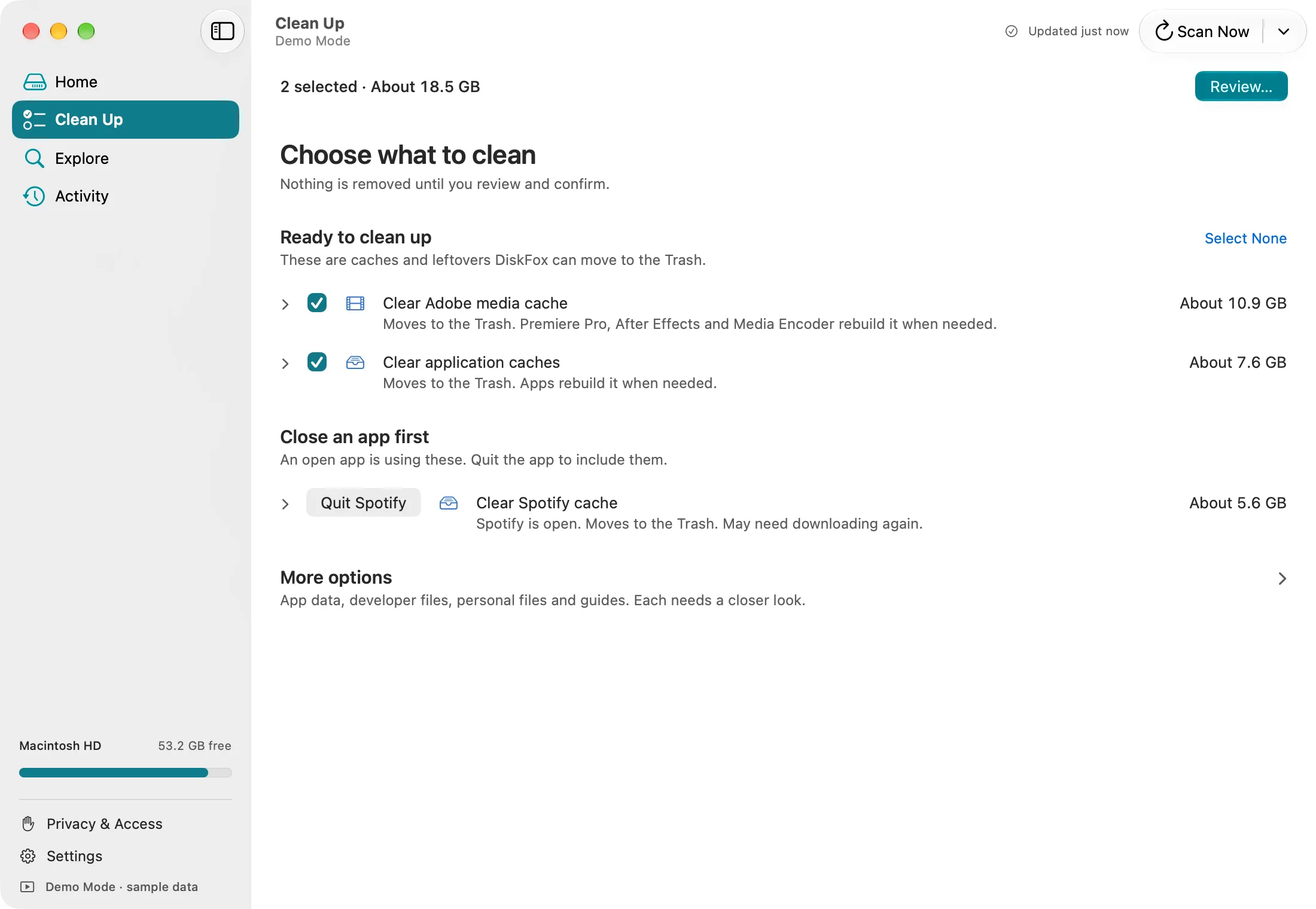
DiskFox's Clean Up page in Demo Mode, with sample data.
DiskFox has no disk map, measures your startup disk only, checks only while it's open, and needs macOS 14 or later. It's a one-time purchase with a 14-day free trial, and no card needed. More on the Mac storage cleaner page.
What to do next
- Measure
~/Library/Cacheswith theducommand above. If it's small, look elsewhere. - Clear the one or two biggest caches with each app's own setting, then empty the Trash.
- If space still runs out, read how to free up space on your Mac to find what's really taking it.