How to free up space taken by Xcode, Docker and npm
Short answer. Almost everything developer tools leave behind can be rebuilt or downloaded again, so it's safe to remove with the tool's own command: Xcode DerivedData, old simulator runtimes (
xcrun simctl runtime delete), unavailable simulators (xcrun simctl delete unavailable), unused Docker data (docker system prune), package caches (brew cleanup,pip cache purge,npm cache clean --force) andnode_modulesin projects you aren't working on. What you lose is time: slower first builds and repeat downloads. Be careful with Xcode archives you've shipped, Docker volumes, emulator data and virtual machines, which can hold things you can't get back.
The general rule: delete with the tool that made it, not in Finder. For space that isn't from developer tools, see how to free up space on your Mac.
Measure first
These commands only read sizes. Run them in Terminal and start with whatever is biggest.
du -sh ~/Library/Developer/* ~/Library/Caches/* ~/.npm ~/.gradle ~/.cargo ~/.android 2>/dev/null | sort -h | tail -15
xcrun simctl runtime list
docker system df
The first lists the biggest developer folders, largest last. The others list simulator runtimes and Docker's usage (with Docker running). If nothing here is large, see why Mac System Data is so large or how to find large files.
Xcode: DerivedData, Archives and DeviceSupport
DerivedData (~/Library/Developer/Xcode/DerivedData) holds build products, indexes and logs, one folder per project. It's often the biggest Xcode folder. Quit Xcode, then move the whole folder, or one project's subfolder, to the Trash. Your source code isn't touched; the next build of each project is a full one. For a single open project, Product > Clean Build Folder does a smaller version of the same thing. It always comes back as you build.
Archives (~/Library/Developer/Xcode/Archives) are created each time you choose Product > Archive. Delete old ones from Window > Organizer > Archives. Keep the archive of any version you've released: it holds the symbols you need to read that version's crash reports, and you can't recreate an identical build later. Archives don't come back unless you archive again.
DeviceSupport (~/Library/Developer/Xcode/iOS DeviceSupport, plus watchOS and tvOS versions) holds debug symbols Xcode copies from each OS version of a device you've connected. Folders for versions none of your devices run any more are safe to move to the Trash. If you connect a device on that version again, Xcode copies the symbols again, which takes a few minutes.
Simulators and simulator runtimes
There are two different things here. Simulator devices are the individual iPhones and iPads you see in Xcode, stored in ~/Library/Developer/CoreSimulator/Devices. Simulator runtimes are the OS images those devices run, stored by the system under /Library/Developer/CoreSimulator.
To remove devices whose OS version your current Xcode no longer supports:
xcrun simctl delete unavailable
This deletes straight away, not to the Trash, with any apps and data inside. You couldn't run them anyway.
For runtimes, Apple's way is Xcode > Settings > Components. Xcode shows how much space each one would recover; click the (i) next to a runtime you don't need and choose Delete (Apple). From Terminal:
xcrun simctl runtime list
xcrun simctl runtime delete --notUsedSinceDays 30 --dry-run
The second command shows which runtimes you haven't used in 30 days. Run it again without --dry-run to delete them, or pass one identifier from the list instead. xcrun simctl help runtime lists other options. You can download any runtime again from the same Components settings.
Don't delete runtime folders by hand. Xcode and simctl unmount and unregister them properly.
Docker Desktop and OrbStack
Docker Desktop keeps every image, container, volume and build cache in one disk image, Docker.raw, in ~/Library/Containers/com.docker.docker/Data/vms/0/data. Finder and some tools show its maximum size rather than what it really uses. Docker suggests checking the real figure with ls -klsh Docker.raw in that folder (Docker).
To free space inside it:
docker system prune
By default it removes stopped containers, networks no container uses, dangling images and unused build cache, after asking you to confirm. Volumes are kept unless you add --volumes, and --all also removes every image no container is using (Docker). Both free more space, at the cost of pulling images again; a removed volume's data is gone for good. The space can take a few minutes to show up.
Be careful lowering Settings > Resources > Advanced > Disk usage limit: Docker's FAQ warns that shrinking the disk image deletes it, with all containers and images.
OrbStack stores its data in ~/Library/Group Containers/HUAQ24HBR6.dev.orbstack/data. Its data.img can show as 8 TB, but OrbStack says it's a sparse file that only takes the space you use and shrinks by itself when you delete data (OrbStack). Check the real size with du -h, and free space with the same docker commands, which work with OrbStack's engine.
Package manager caches
Clearing these is safe. You lose time, not data, and they refill as you install things.
| Tool | Where | Official command |
|---|---|---|
| Homebrew | ~/Library/Caches/Homebrew |
brew cleanup |
| npm | ~/.npm/_cacache |
npm cache verify or npm cache clean --force |
| pip | ~/Library/Caches/pip |
pip cache purge |
| CocoaPods | ~/Library/Caches/CocoaPods |
pod cache clean --all |
| Gradle | ~/.gradle/caches |
Cleans itself; see below |
| Cargo | ~/.cargo/registry |
See below |
- Homebrew:
brew cleanupremoves old versions of installed packages and downloads more than 120 days old. Add-nto see what it would remove first, or--prune=allto clear every download. Homebrew also runs cleanup by itself after installs and upgrades (Homebrew). - npm: npm says its cache is self-healing, so clear it only to reclaim space.
npm cache verifyremoves unneeded data;npm cache clean --forceempties it (npm). - pip:
pip cache infoshows the size first.pip cache purgeremoves everything (pip). - CocoaPods:
--allis required to clear the whole cache (CocoaPods). Without it, name one pod. - Gradle removes unused downloaded entries after 30 days and generated ones after 7 by default, so it rarely needs help (Gradle). If you do want it gone, run
gradle --stopand move~/.gradle/cachesto the Trash. - Cargo says you can remove any part of its cache and it will extract or download sources again (Cargo). Each project's
targetfolder is often bigger.cargo cleanempties it, and the next build starts from scratch.
For app caches beyond developer tools, see how to clear cache on your Mac.
node_modules folders
Each JavaScript project has its own node_modules, and old projects add up. To list them by size (change ~/Projects to wherever your code lives):
find ~/Projects -name node_modules -type d -prune -exec du -sh {} + | sort -h
Moving node_modules to the Trash is safe in any project with a package.json. Run npm ci (if there's a lockfile) or npm install to get it back. npm ci removes any existing node_modules before it installs (npm). Start with projects you haven't opened in months.
Android Studio and emulators
Emulators (AVDs) live in ~/.android/avd. In Android Studio's Device Manager, open an emulator's menu and choose Delete to remove it, or Wipe Data to keep the device but clear its contents (Android).
The system images emulators boot from are under ~/Library/Android/sdk/system-images. Remove versions you don't use in Settings > Languages & Frameworks > Android SDK (tick Show Package Details), not in Finder. You can download them again there.
Virtual machines: UTM and Parallels
A virtual machine can hold your own files, so only you can decide what goes. Delete machines from inside the app that made them.
- UTM stores machines in
~/Library/Containers/com.utmapp.UTM/Data/Documents. To delete one, Control-click it in UTM and choose Delete. For a machine you keep, its drive settings have Reclaim Space and Compress. UTM calls these experimental and says to back the machine up first (UTM). - Parallels keeps machines in
~/Parallels. Choose File > Free Up Disk Space in Parallels Desktop. Parallels suggests deleting old snapshots in Snapshot Manager first, then reclaiming space. You can also turn on Reclaim disk space on shutdown (Parallels).
Summary: what's safe to delete
| What | Safe way | What you lose | Comes back? |
|---|---|---|---|
| Xcode DerivedData | Quit Xcode, Trash the folder | Slower next build, re-indexing | Yes, as you build |
| Xcode Archives | Organizer | Crash symbols for that build | No |
| iOS DeviceSupport | Trash old versions | Re-copy when that OS connects | Only if needed |
| Unavailable simulators | xcrun simctl delete unavailable |
Apps and data in them | No |
| Simulator runtimes | Xcode Settings > Components, or simctl runtime delete |
Re-download if needed | If you reinstall |
| Docker data | docker system prune |
Image pulls; volumes if you add --volumes |
Yes, as you work |
| Package caches | brew cleanup, pip cache purge and so on |
Re-downloads | Yes |
| node_modules | Trash, then npm ci |
Install time | When you reinstall |
| Android emulators | Device Manager | Data on the emulator | No |
| Virtual machines | Inside UTM or Parallels | Everything in the machine | No |
Leave alone
Docker.rawand OrbStack'sdata.imgin Finder. Deleting the file deletes every container, image and volume at once.- Simulator runtime folders and anything in
/System. Use Xcode's tools. ~/Library/Developer/Xcode/UserData, which holds your Xcode settings, key bindings and snippets.sudo rm -rflines from forums. Never turn off System Integrity Protection to free space.
Doing it with DiskFox
We make DiskFox. Its Developer data & caches group measures Xcode DerivedData, archives, device support files, simulator devices and runtimes, simulator caches and SwiftUI preview data. It also measures package caches for Swift Package Manager, CocoaPods, Homebrew, npm, Yarn, pip, Poetry, Bun, Gradle, Go and Cargo, plus Android emulators and system images. Its Containers & virtual machines group measures Docker Desktop, OrbStack, Colima, UTM, Parallels and VirtualBox.
Cleanup is review-first. Most items move to the Trash, where you can put them back. It tells you to quit Xcode before clearing DerivedData, and only offers archives more than 90 days old. Simulator runtimes and unavailable simulators are removed with Xcode's own simctl, which is permanent, so DiskFox asks you to confirm that separately. Its What Changed view shows when developer data grew.
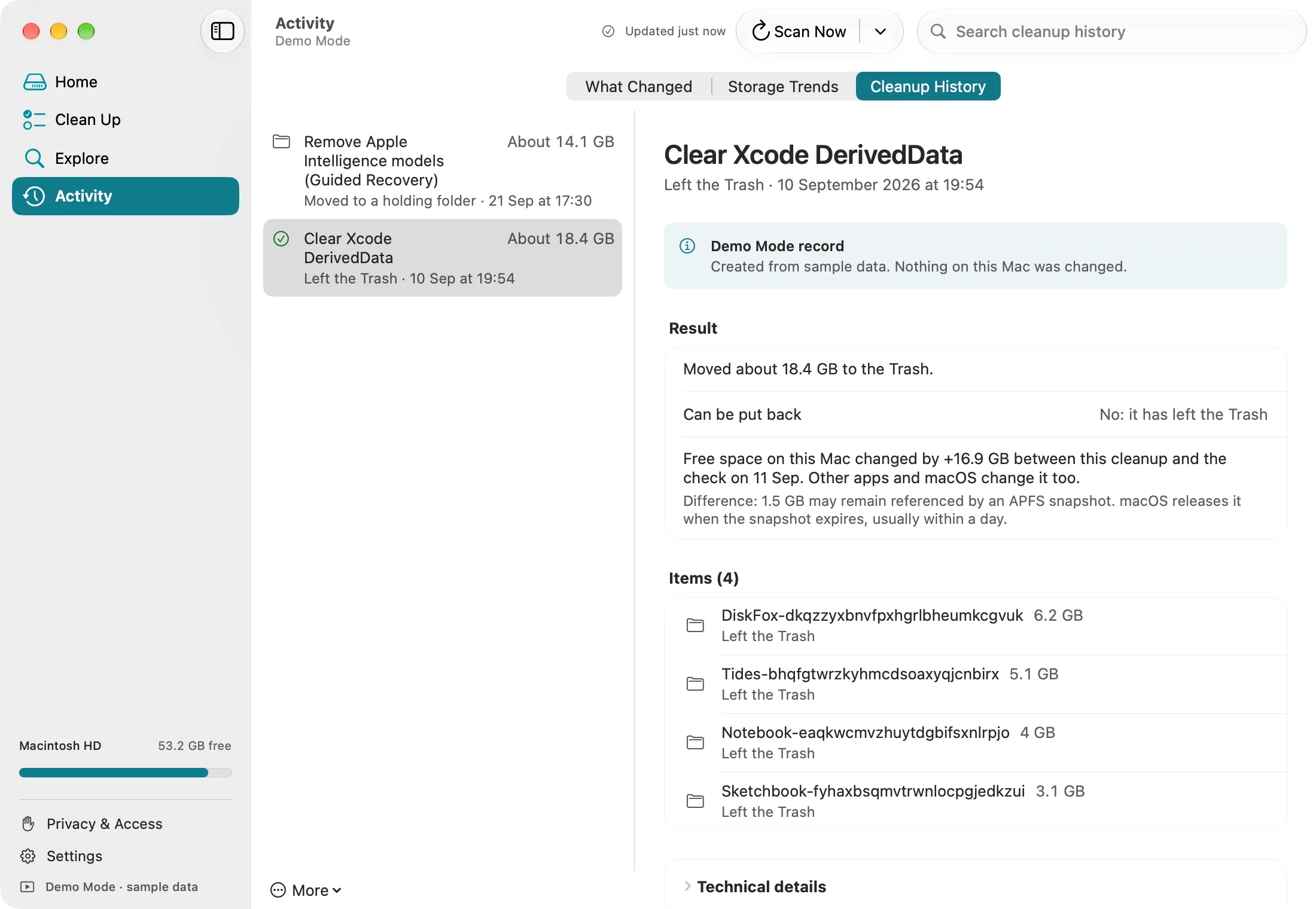
Cleanup History keeps a record of what moved and how much space came back. Demo Mode sample data.
What it doesn't do: it doesn't run docker system prune or delete virtual machines. For those it shows steps like the ones above. It doesn't find node_modules folders, and it only measures your startup disk. It's a one-time purchase, with a 14-day free trial and no card needed.
What to do next
- Run the commands under Measure first and pick the biggest one or two items.
- Clear them with the tool's own command, starting with DerivedData, unused runtimes and package caches.
- Check again in a month, since most of this regrows. For space outside developer tools, see how to free up space on your Mac.