How to find what's taking up space on your Mac
Short answer. Open Apple menu > System Settings > General > Storage for a breakdown by category, and click the (i) next to the biggest one to see what's inside. Storage settings can't explain everything, so for the rest, turn on folder sizes in Finder's list view or run
duin Terminal to rank the folders in your home folder. The usual culprits are Downloads, videos, Messages attachments, iPhone backups, the Photos library and developer tools such as Docker and Xcode.
The steps below go from quickest to most thorough.
Step 1: Check Storage settings
- Choose Apple menu > System Settings, click General in the sidebar, then click Storage.
- Wait for the coloured bar at the top to finish loading.
- Look down the list of categories. The biggest ones are where to start.
- Click the (i) next to a category to see what's in it. In many categories you can select an item and click Delete, or click Show in Finder to look at it first.
Deleting from Storage settings can remove a file straight away instead of putting it in the Trash. If you might want something back, click Show in Finder and move it to the Trash from there.
Recommendations, above the categories, offers to store files in iCloud, optimise storage (when space is low, it removes Apple TV films and shows you've watched and keeps only recent mail attachments) and empty the Trash automatically after 30 days. All three are safe, though storing files in iCloud needs enough iCloud storage.
What each category usually holds
| Category | What's usually in it | Where to deal with it |
|---|---|---|
| Applications | Apps you installed (not the ones that come with macOS) | The (i) list, or drag the app to the Trash |
| Documents | Files in your home folder that don't fit elsewhere, including videos and photos that aren't in Photos | The (i) button: Large Files, Downloads and File Browser |
| Photos | Your Photos library | The Photos app |
| Messages | Conversations and the attachments in them | The (i) list, or Messages settings |
| iOS Files | iPhone and iPad backups, and software update files | The (i) list |
| Emails and downloaded attachments | The Mail app | |
| Music, TV, Podcasts, Books | Downloads you can get again | The (i) list or the app |
| Developer | Xcode data, if you use it | The (i) list (it may not show everything) |
| Trash | Things you deleted but haven't emptied | Empty the Trash |
| macOS | macOS itself and, on macOS 27, Apple Intelligence's models | Nothing to remove here |
| System Data | Caches, logs, virtual memory files, often local Time Machine snapshots, and anything that isn't counted elsewhere | See why System Data gets so large |
Storage settings sorts files by type, not by folder, and anything it can't place ends up in System Data, which you can't open. A Docker disk image or a virtual machine often lands there. When the categories don't add up, look at the folders themselves.
Step 2: Measure folders in Finder
Get Info on one folder
- In Finder, choose Go > Home.
- Select a folder, such as Movies, and choose File > Get Info.
- Wait for Size to finish calculating. It shows the folder's size and how much it uses on disk.
See every folder's size at once
- In your home folder, choose View > as List.
- Choose View > Show View Options.
- Tick Calculate all sizes. To use this in every folder, click Use as Defaults.
- Click the Size column heading to sort by size. Click it again to flip the order.
Finder takes a moment to fill in the sizes. Open the biggest folder and keep going down until you find what's large.
Look in your Library folder too
Your home folder's Library folder is hidden, and it's often the biggest folder you have. It holds app data, caches, Messages attachments, iPhone backups and Mail. To open it, hold the Option key and choose Go > Library. To see other hidden folders, press Shift-Command-Period in a Finder window.
Look, but don't delete things here by hand unless you know what they are. Apps expect these files, and the app's own settings are usually the safer way to clear them.
Step 3: Rank folders in Terminal
Terminal is in Applications > Utilities. The commands below only measure. They don't change or delete anything.
du -sh ~/* 2>/dev/null | sort -h
This lists every folder at the top of your home folder with its size, biggest last. du measures disk usage, -s gives one total per folder and -h shows readable units. 2>/dev/null hides "Operation not permitted" messages for folders Terminal isn't allowed to read. macOS may ask whether Terminal can open your Desktop, Documents or Downloads. If you say no, those folders show as smaller than they are.
du -hd1 ~/Library 2>/dev/null | sort -h | tail -15
This lists the 15 biggest folders inside Library. The last line is Library's total. Change ~/Library to any folder to dig further, such as ~/Library/Containers.
du -sh ~/.[!.]* 2>/dev/null | sort -h | tail -10
This measures the hidden folders in your home folder, whose names start with a dot. Developer tools keep package caches in folders such as .npm and .cache.
du counts in units of 1,024 rather than Finder's 1,000, so its figures look about 7% smaller. It also shows the space files actually take, so files kept only in iCloud, and Docker's disk image, can look much smaller than in Finder.
Where space usually hides
Downloads. Installers, disk images, zip files and things you opened once. Most of it can be downloaded again.
Movies and video projects. Screen recordings, exported videos, and iMovie or Final Cut Pro libraries. Video libraries keep render files that can outgrow the footage. In Final Cut Pro, select the library and choose File > Delete Generated Library Files.
Messages attachments. Photos and videos people send you pile up in ~/Library/Messages. Review the biggest in Storage settings under Messages, or in Messages choose Settings > General and set Keep messages to 1 year or 30 days, which removes older messages and their attachments. If Messages in iCloud is on, deletions happen on your other devices too. Don't delete the Attachments folder by hand.
iPhone and iPad backups. Local backups are kept in ~/Library/Application Support/MobileSync/Backup, and each can take tens of gigabytes. Delete old ones in Storage settings under iOS Files. Keep at least one recent backup of any device you still use, unless it backs up to iCloud.
Docker and virtual machines. Docker Desktop keeps images, containers and volumes in one large disk image. docker system df shows what's inside it. docker system prune permanently deletes stopped containers, unused networks, dangling images and build cache, so check what you'd lose first. Virtual machines from Parallels, UTM or VirtualBox are often tens of gigabytes each; delete unused ones from inside the app.
Xcode. ~/Library/Developer holds DerivedData, simulators, device support files and archives. DerivedData is safe to delete: Xcode rebuilds it, and your next build is just slower. xcrun simctl delete unavailable removes simulators whose runtime you no longer have installed. Keep the archives of builds you've released if you need to read their crash reports.
Photos library. It's one package in Pictures, counted under Photos. If you use iCloud Photos, turn on the option to optimise Mac storage in Photos settings so the Mac keeps smaller copies when space runs low. Delete photos in Photos, then empty Recently Deleted. Never delete files from inside the library in Finder.
Time Machine local snapshots. These usually count as System Data. tmutil listlocalsnapshots / lists them, and macOS deletes them by itself when it needs the space.
When a storage analyzer helps
The built-in tools work, but you check one folder at a time. A storage analyzer does the measuring for you.
Disk maps such as DaisyDisk and GrandPerspective draw your whole disk as a picture, with each folder sized by the space it takes, so big folders stand out at a glance. If you want to browse everything visually, use one of those. Our comparison of Mac storage analyzers covers more options.
DiskFox works differently. It isn't a disk map and has no general folder browser. Instead:
- Home splits your used space into groups such as Developer data & caches, App data & caches, Containers & virtual machines, and Backups, mail & downloads. Click a group to see what's inside it and how it changed over the past week. Apps, documents, photos and macOS go into one "Everything else" group, which DiskFox doesn't break down.
- Largest Files lists the 200 biggest files over 1 MB in your home folder or folders you choose.
- Applications lists apps by size, counting each app's data and caches in folders named after it, with when you last used it.
- What Changed compares scans over time and names what grew, such as a folder in Movies. It can only compare scans from after you install it.
It measures the startup disk only. Some locations, such as Messages attachments and iPhone backups, need Full Disk Access, which is optional.
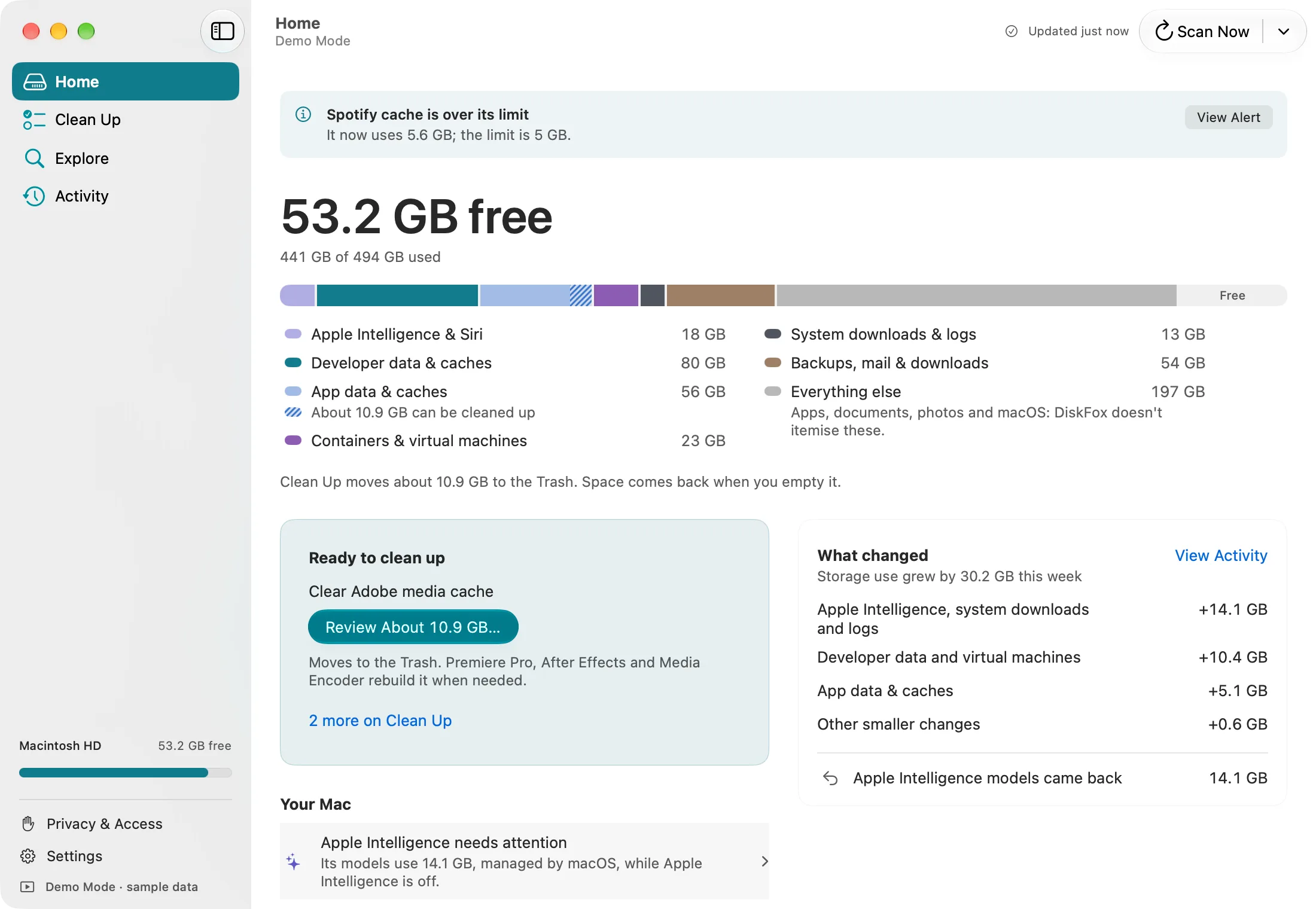
DiskFox's Home page in Demo Mode, with sample data.
What to do next
- If one or two big files are the problem, follow how to find large files on your Mac.
- If System Data is the biggest category, read why System Data gets so large.
- If space keeps disappearing after you clear it, see why Mac storage keeps filling up and how to track storage changes over time.
Whatever you remove, the space only comes back once you empty the Trash.