How to uninstall apps on Mac completely
Short answer. Quit the app, drag it from the Applications folder to the Trash, then empty the Trash. If the app came with its own uninstaller, use that instead: it knows everything the app installed. Apps from the App Store can also be deleted from Apps (macOS 26 and later) or Launchpad (macOS 15 and earlier). Dragging an app to the Trash leaves its settings, caches and data in your Library folder. Most of that is small, but some apps leave gigabytes. You can find it in
~/Libraryand move what belongs only to the removed app to the Trash. Leave anything that belongs to an app you still use, or to macOS.
Apple's own steps are in Delete or uninstall apps on Mac. This guide adds what they leave out: where the leftovers go, which are safe to remove, and how to undo a mistake.
Uninstall an app with Finder
This works for almost every app, wherever it came from (Apple).
- Quit the app.
- In Finder, click Applications in the sidebar. A few apps live in the Applications folder inside your home folder instead.
- If the app sits in its own folder, look in that folder for "Uninstall [App]" or "[App] Uninstaller". If there is one, use it (see below).
- Otherwise, drag the app to the Trash, or select it and choose File > Move to Trash. If you're asked, enter an administrator's name and password.
- Empty the Trash when you're sure. Until then, the app still takes up space.
On a Mac set to British English, the Trash is called the Bin, so the menus say Move to Bin and Empty Bin.
Before you start, Apple points out two things (Apple):
- Deleting an app doesn't delete documents you made with it, but you may need the app to open them.
- Deleting an app doesn't cancel a subscription you bought through it. Cancel it separately.
You can't delete apps macOS needs, such as Mail, Music and Notes, or anything in the System folder.
Apps from the App Store
You can drag App Store apps to the Trash like any other, or delete them this way (Apple):
- Click Apps in the Dock on macOS 26 or later, or Launchpad on macOS 15 and earlier.
- Click and hold the app's icon until the icons start to jiggle.
- Click the delete button (×) on the app. If an app has no ×, delete it in Finder instead.
To get one back later, open the App Store, click your name in the bottom-left corner and download it from your purchases.
Apps with their own uninstaller
Apple says an app's own uninstaller is the best way to remove it, along with the login items, extensions and other data it stored elsewhere (Apple). Look for one:
- next to the app, in its folder in Applications
- inside the app, as a menu item or setting called Uninstall, Remove or Reset
- on the developer's website, as a separate download or instructions
Always use it for apps that add something to macOS itself: security software, VPNs, device drivers, and apps you installed from a package (a .pkg file). These often put parts in /Library or add system extensions, and dragging the app to the Trash doesn't remove them.
See your apps by size in Storage settings
- Choose Apple menu > System Settings, click General in the sidebar, then click Storage.
- Click the (i) next to Applications. It lists the apps you installed, not the ones that come with macOS (Apple).
- Select an app you no longer use and click Delete.
Apple's guide doesn't say whether apps deleted here go to the Trash first, so use Finder if you might want one back.
What dragging to the Trash leaves behind
Most apps keep their settings and data outside the app itself, in the Library folder inside your home folder. Moving the app to the Trash doesn't touch any of it. That's why a reinstalled app usually picks up where you left off, and also why the leftovers stay until you remove them.
To open your Library folder, choose Go > Go to Folder in Finder, type ~/Library and press Return. Or hold down Option and choose Go > Library (Apple).
Leftovers are usually named after the app, its developer, or the app's ID, which looks like a reversed web address such as com.example.AppName.
Folder in ~/Library |
What apps keep there | Safe to delete for an app you've removed? |
|---|---|---|
Application Support |
Settings, databases and downloaded content. Sometimes your own work, such as game saves, libraries or presets | Usually, after a look inside. Move anything you made somewhere safe first. |
Caches |
Files kept so the app loads faster | Yes. |
Preferences |
The app's settings, in a small .plist file named after its ID |
Yes. These are tiny. |
Containers |
Everything a sandboxed app stores, which includes App Store apps | Yes, if you don't need what's inside. It's all of that app's data. |
Group Containers |
Data shared by apps from the same developer. Names often start with a 10-character code or group. |
Only once no app from that developer is left. |
Logs |
The app's logs and crash reports | Yes. |
LaunchAgents |
Small files that start an app's helper when you log in | Yes, if the file name clearly names the removed app or its developer. |
Saved Application State |
Which windows were open, so the app can reopen them | Yes. These are tiny. |
HTTPStorages and WebKit |
Cookies and website data the app kept | Yes. |
Apple's developer documentation describes app containers, which macOS creates in ~/Library/Containers when a sandboxed app first opens, and app groups, which let apps from the same developer share a container. Apps from the Mac App Store must be sandboxed (guideline 2.4.5).
The system-wide Library
There's a second Library folder at the top of your startup disk, /Library, for files shared by every account on the Mac. Apps that asked for an administrator password while installing often put files there:
/Library/Application Support,/Library/Cachesand/Library/Preferences/Library/LaunchAgentsand/Library/LaunchDaemons: helpers that start for every user, or when the Mac starts up/Library/PrivilegedHelperTools: helpers that run with administrator rights/Library/Extensions: older drivers, called kernel extensions
Leave these to the app's uninstaller if it has one. Moving them needs an administrator password, and a mistake affects every account. If you do remove a helper by hand, restart your Mac afterwards so it stops running.
How to find an app's leftovers yourself
Before you uninstall, note the app's ID. Open Terminal from Applications > Utilities and run this, with your app's name in place of AppName:
mdls -name kMDItemCFBundleIdentifier -raw "/Applications/AppName.app"It only reads the app's details, and prints something like
com.example.AppName.Uninstall the app as above. If it left an icon in the menu bar, quit that too.
List what's left. This only reads, and changes nothing:
find ~/Library /Library -maxdepth 3 -iname "*AppName*" 2>/dev/nullRun it again with the app's ID in place of AppName, and once with the developer's name. If macOS asks whether Terminal can access data from other apps, either answer is fine; saying no just means it may miss some files. A short or common name can match other apps' files too, so only remove items that clearly belong to the app you removed.
In Finder, choose Go > Go to Folder, paste a path from the list, and move what belongs only to the removed app to the Trash. Items in
/Libraryask for an administrator password.Look through the Trash, then empty it.
Use the Trash rather than rm in Terminal, so you can change your mind.
Apps installed from a package
When an app came as a .pkg installer, macOS keeps a receipt that lists what it installed. These commands only read:
pkgutil --pkgs | grep -i AppName
Lists the packages whose names match. Then:
pkgutil --files com.example.pkg
Lists every file that package installed (replace com.example.pkg with a name from the first list). The paths usually start from the top of your startup disk. Use the list to see where things went, but remove them with the developer's uninstaller if there is one.
Login items, background items and extensions
An app can also leave a login item, a background helper or an extension behind. Check Apple menu > System Settings > General > Login Items & Extensions, called Login Items on macOS 14 (Apple):
- Open at Login lists apps that open when you log in. Select one you've removed and click the remove button (−). A warning symbol next to an item means the app was moved or deleted.
- App Background Activity, called Allow in the Background on macOS 14 and 15, lists helpers that work while their app isn't open. Click the (i) to see which item an entry starts (Apple), and turn off any that belong to an app you removed.
- Extensions, on macOS 15 and later, lists extensions by type, such as Network Extensions (VPNs and content filters) and Endpoint Security Extensions. Click the (i) next to a type to turn one off. Security and VPN apps usually need their own uninstaller to remove these completely.
What not to delete
- Folders of apps you still use. Deleting an app's container or Application Support folder resets it. For a chat or notes app, that can delete history that isn't stored anywhere else.
- Shared folders. A developer's folder in Application Support, or a group container, can serve several of their apps. Leave it while any of them is installed.
- Folders an older copy still uses. If you keep two versions of the same app, both use the same settings and caches.
- Anything named
com.apple…, and anything in/System. These belong to macOS. sudo rmcommands copied from forums. One wrong path can stop your Mac starting up.
If you change your mind
- Still in the Trash? Open the Trash, select the item and choose File > Put Back to return it to where it was (Apple). Put the app and its Library folders back together.
- Already emptied the Trash? Reinstall the app from the App Store or the developer. If you back up with Time Machine, you can restore the Library folders to get your settings and data back.
- If Remove items from the Trash after 30 days is on in Finder's settings, or Empty Trash Automatically in Storage settings, you have 30 days to put things back.
Where DiskFox helps
We make DiskFox. Its Explore > Applications page lists your apps with each one's size, including the data and caches kept in folders named after it, and when you last used it. Apps that are part of macOS are marked as such and can't be uninstalled.
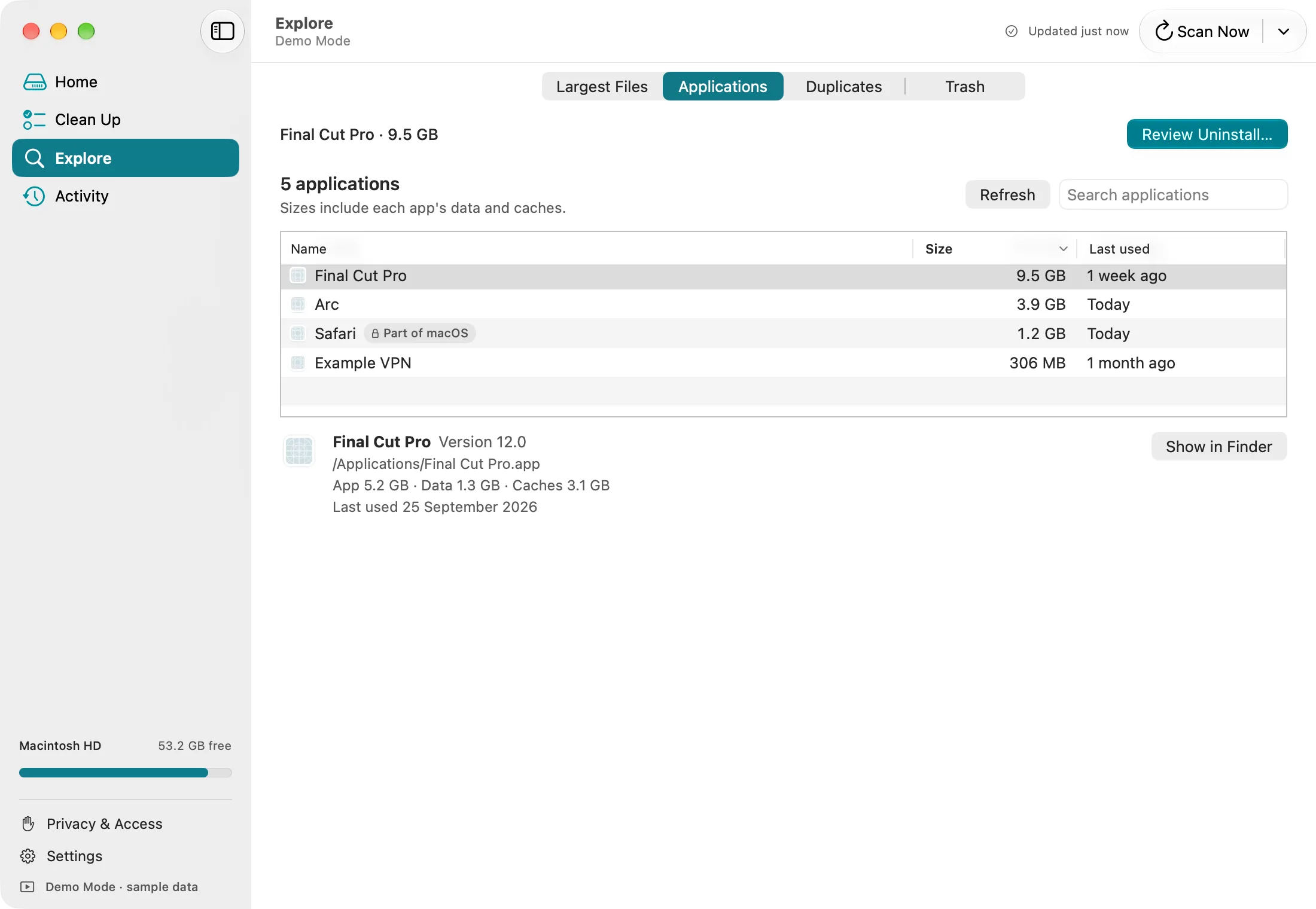
DiskFox's Applications page in Demo Mode, with sample data.
Review Uninstall… shows exactly what would move before anything does:
- It checks for parts outside the app first, without changing anything: system and network extensions, helpers installed with administrator rights, background services in
/Library, files from a package installer, and an uninstaller of the app's own. If it finds any, it recommends that uninstaller, can show it in Finder, and asks you to confirm you understand those parts stay installed. - It lists the app and its folders in
~/Librarythat are named after the app's ID: Application Support, Caches, Containers, Preferences, Saved Application State and website data. Caches, preferences and saved state start ticked. Folders that may contain your data are marked as such and start unticked. If another copy of the app is installed, nothing starts ticked, because both copies use these folders. - If the app is open, DiskFox asks it to quit and waits, so you can save your work. It only forces it to quit if you choose that.
- The folders move to the Trash first and the app last. DiskFox checks each path again just before moving it and records every step in its history. If a move fails, it puts back whatever had already moved.
Afterwards, Put Back in Activity > Cleanup History returns anything still in the Trash to where it was, and Delete from Trash Now… empties only the items DiskFox just moved. Deleting permanently instead is an option you have to choose, and confirm by typing DELETE.
For apps you removed long ago, the Clean Up page lists possibly abandoned app data under More options > App data and caches. These are folders of 100 MB or more in ~/Library (Application Support, Caches, Containers, Group Containers and HTTPStorages) whose app isn't installed or running, and that haven't changed for at least 90 days. DiskFox doesn't suggest a folder when another app from the same developer is installed, or when other software shares it. None is ticked for you, each says why DiskFox thinks it may be abandoned, and anything you choose goes to the Trash.
It has limits:
- It only offers folders named after the app, so files the app made elsewhere, such as logs, login items and group containers, may remain.
- It won't uninstall itself, macOS's own apps, or an app that changed after it was checked.
- App Store apps belong to the system account. Moving them needs DiskFox's optional administrator helper, which macOS asks you to approve in Login Items settings, and Full Disk Access. For uninstalling, the helper can only move the one app you confirmed, sitting directly in an Applications folder, to your Trash. It can't run commands, and standard accounts can't use it. Without it, drag the app to the Trash in Finder.
DiskFox measures the startup disk only and needs macOS 14 or later. It's a one-time purchase with a 14-day free trial, no card needed. More on the Mac storage cleaner page.
What to do next
- If you're clearing space more widely, start with how to free up space on your Mac.
- To clear caches for apps you're keeping, see how to clear the cache on a Mac.
- To see which other folders are large, read what's taking up space on your Mac.
Anything moved to the Trash only frees space once you empty it.