How to see what's using space on an external drive (Mac)
Short answer. Storage settings on a Mac only breaks down the startup disk, so for an external drive you use Finder and Disk Utility instead. Select the drive in Finder and choose File > Get Info for its used and free space, then open it in list view with Calculate all sizes turned on to see which folders are biggest. In Terminal,
du -sh /Volumes/DriveName/* | sort -hlists the top folders by size. When you delete files from the drive, the space comes back only once you empty the Trash while the drive is still plugged in.
This guide is about external drives you plug in: USB and Thunderbolt SSDs, hard drives and SD cards. For the Mac's own disk, start with what's taking up space on your Mac.
Check how full the drive is
- In Finder, click the drive under Locations in the sidebar. If it isn't there, choose Finder > Settings, click Sidebar and tick External disks.
- Choose File > Get Info. The General section shows the drive's Capacity, Available and Used space, and its format.
- For a quick look at any time, choose View > Show Status Bar in a Finder window. The bar at the bottom shows how much space is free on the drive you're looking at.
Disk Utility (in Applications > Utilities) shows the same figures with a coloured bar. Select the drive in the sidebar. If you don't see it, choose View > Show All Devices.
See which folders are biggest in Finder
- Open the drive in Finder and choose View > as List.
- Choose View > Show View Options and tick Calculate all sizes. Without it, folders show "--" in the Size column.
- Click the Size column heading to put the biggest first.
- Open the biggest folder and repeat until you find what's taking the space.
On a big hard drive, calculating sizes can take a few minutes the first time. Leave the window open while the numbers fill in.
See which folders are biggest in Terminal
Terminal is in Applications > Utilities. Drives appear under /Volumes, by name. These commands only list sizes. They don't move or delete anything.
df -h /Volumes/"Archive SSD"
Shows the drive's size, how much is used and how much is free. Replace Archive SSD with your drive's name, keeping the quotes if it has a space in it.
du -sh /Volumes/"Archive SSD"/* 2>/dev/null | sort -h
Lists each top-level folder and file on the drive with its size, biggest last. Change the path to look inside a folder, for example /Volumes/"Archive SSD"/Footage/*. 2>/dev/null hides messages about folders Terminal isn't allowed to read.
The first time, macOS may ask whether Terminal can access files on a removable volume. If you say no, the command can't read the drive.
Space you can't see in Finder
If the folders you can see add up to much less than the drive's used space, the rest is usually one of these:
The drive's own Trash. Files you delete from an external drive go to a hidden .Trashes folder on that drive, not to the Mac's disk. They keep using the drive's space until you empty the Trash, and the drive must be plugged in when you do. If you empty the Trash with the drive unplugged, its deleted files stay.
The Spotlight index. macOS keeps a search index for each drive in a hidden .Spotlight-V100 folder. It's normally small next to the drive's contents. If you never search the drive, you can add it to the privacy list in Spotlight's settings so macOS stops indexing it.
APFS snapshots. On a drive formatted as APFS, backup apps and some other tools can keep snapshots, which hold on to deleted files. In Disk Utility, select the drive's volume and choose View > Show APFS Snapshots to see them.
Small files on exFAT drives. Drives formatted as exFAT, often used to share with Windows PCs, store files in fixed-size blocks. Thousands of tiny files can use far more space than their sizes add up to. Get Info on a folder shows both: its size, and how much it takes "on disk".
To see hidden folders in Finder, press Command-Shift-Period. Press it again to hide them. Look, but don't delete hidden folders by hand: empty the Trash in Finder instead.
Time Machine backup drives
A Time Machine drive is meant to fill up. Time Machine keeps hourly, daily and weekly backups, and when the drive is full it deletes the oldest ones by itself.
Don't delete files from a Time Machine drive in Finder or Terminal, as that can damage the backups. If you need the space back, use a bigger drive, or remove the drive in Time Machine's settings and erase it in Disk Utility, which deletes every backup on it.
Clearing space on an external drive safely
- Know what you're deleting. If an external drive holds the only copy of something, deleting it there deletes it for good. Copy anything important somewhere else first.
- Use the Trash. Select files and choose File > Move to Trash, then empty the Trash with the drive still connected.
- Remove app files through their app. A Photos, Music or Final Cut library stored on the drive is one big package. Delete things inside the app, never from inside the library in Finder.
- Eject before unplugging. Choose File > Eject in Finder first, so nothing is lost mid-write.
Seeing what grew on a drive over time
Finder and Terminal show the drive as it is now. If a drive keeps filling up, such as a video drive or one you back up to by hand, it helps to know which folder grew and when. You can save the output of the du command above to a dated file every week and compare them, as described in how to track storage changes.
Where DiskFox helps
Since version 1.3, DiskFox can follow external drives as well as your Mac's own disk:
- In Settings > Drives, switch a drive on and it gets its own page in the sidebar: its free space, what grew on it this week ("Footage grew 48 GB this week"), when it was last checked, the apps on it and its own storage map, with blocks sized by space and coloured by how much they grew.
- It measures a drive when you plug it in, when DiskFox opens and when you choose Scan Now. Otherwise it only measures when macOS says something on the drive changed, so a sleeping drive isn't woken.
- An unplugged drive keeps its history. Plug it back in and DiskFox compares it with the last check.
- Largest Files and Duplicates can look at just that drive. Files you choose to remove go to that drive's own Trash, after a review.
- Time Machine backups, network drives, disk images and read-only drives are listed for what they are, never measured or changed.
Drive names and folder names stay on your Mac. DiskFox doesn't measure network drives, and it only checks while it's open, in its window or the menu bar.
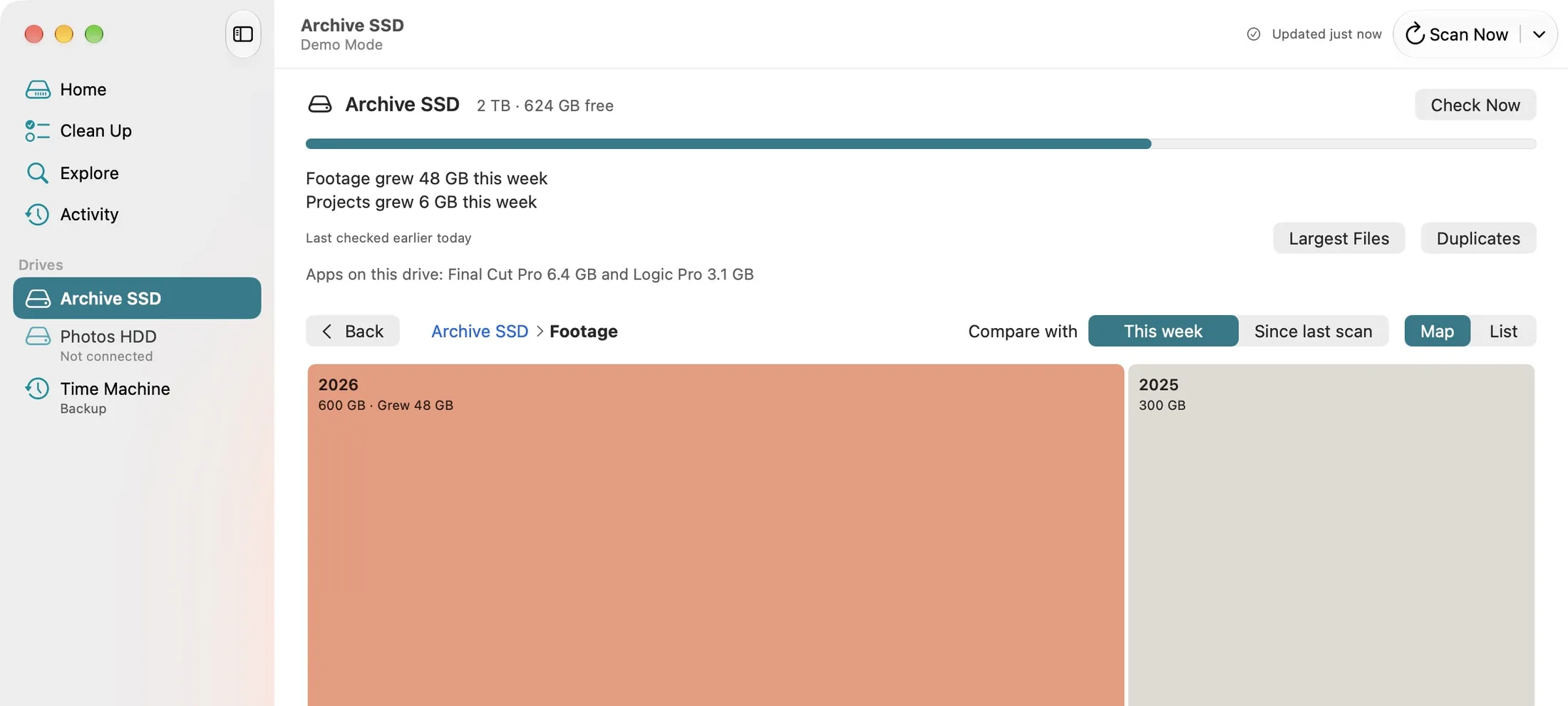
DiskFox's page for an external drive in Demo Mode, with sample data.
What to do next
- To find single big files on the drive, the Finder search and Terminal commands in how to find large files on your Mac work on external drives too: choose the drive instead of This Mac, or change
~to the drive's path. - For the Mac's own disk, see how to free up space on your Mac.
- To compare apps that show storage visually, read the best Mac disk space analyzers.